Your whole snow season, in one app.
Log every session on your Season Wall, see who's riding today, meet up at the resort, and track your progress — SnowNavi turns solo laps into a season-long community.
Available for iPhone & Android — open beta. Tap “Get the app” to install on your phone.
Built for how you actually ride
Six things the app does — from your first log of the season to meeting the crew on the mountain.
Season Wall
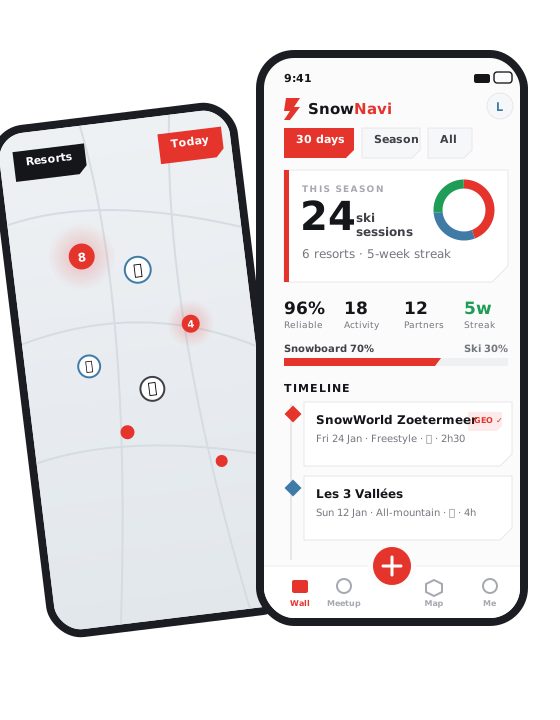
Every session lands in a personal dashboard: sessions ridden, resorts visited, week streaks, your style mix and a reliability score.
Meetup Board
See which resorts people want to ride, then join or start a meetup and lock in the details in the group chat.
One-tap Check-in
Resort geofencing knows when you've arrived — one tap confirms you're on snow and adds it to your wall.
Live Map
A real-time map of resorts and riders: bigger red dots mean busier resorts today, and you can see where friends are.
Digital Membership Card
Your SnowNavi membership, always in your pocket — bind it once and show it anywhere.
Leaderboard & Tricks
Climb the season leaderboard and tick off tricks in your trick list as you land them.
Riding in four steps
Download & sign up
Grab SnowNavi, then sign up with your email or Apple ID.
Set up your rider profile
A quick 5-step wizard: board type, style, level and a few basics.
Follow your resorts
Pick the resorts you ride so your map and meetups stay relevant.
Log your first session
Tap the red + to check in — your Season Wall starts filling up.
Learn the app, tap by tap
Open any section for step-by-step instructions. Everything you need to go from install to your first meetup.
1Getting started & your account▾
- Install the app from the App Store / Google Play, or follow the beta install steps on the “Get the app” page.
- Create an account with your email & password, or use Sign in with Apple on iPhone.
- Finish onboarding — a 5-step wizard (nickname → board type → style → level → about). You can skip any step and edit it later in “Me”.
- Bind your SnowNavi membership (optional) to unlock your digital member card — see “How do I bind my membership?” in the Q&A below.
2Season Wall — your diary & stats▾
- Pick a time window with the chips at the top: last 30 days, current season, past seasons, or all-time.
- Read your stats panel: sessions ridden and resorts visited, plus activity, streak, reliability and partner counts — and a ring chart of your riding style mix.
- Scroll the timeline to see every check-in as a card (resort, date, style, board, gear, duration). Tap a card to review or edit that session.
- Check “upcoming” to see meetups you've joined that are coming up.
3Meetup — ride with others▾
- Filter by resort using the chip row (your followed resorts first). Tap “+” to manage which resorts you follow.
- Join a meetup that suits you, or start your own — pick a resort, date and details.
- Coordinate in the group chat on the meetup page: agree a meeting point and time.
- Manage the meetup from its settings (members, meeting point, or leave).
4Check-in — confirm you're on snow▾
- Tap the red + in the middle of the bottom bar when you're at a resort.
- Geofencing detects the resort automatically and confirms your arrival with one tap.
- Add the details — style, board type, gear and duration — so your Season Wall stays accurate.
- Missed a day? Backfill a past session manually; it's marked as a back-log entry.
5Live Map — resorts & riders▾
- Resorts layer: red dots are ski resorts — bigger means busier today, and the busiest ones pulse. Nearby dots merge into a numbered bubble; tap to expand.
- Skiers layer: switch to “Skiers” to see riders (🏂 snowboard, ⛷️ ski); tap someone to open their rider page.
- Today mode: tap “Today” (top-right) to show only people and resorts with a meetup or check-in today.
- Share your home area once to appear on the live skiers map to people you allow.
6Profile, social & membership▾
- Your profile (“Me”) shows your season stats, followers/following and settings.
- Follow riders from the map, leaderboard or their rider page to see where they've been riding.
- Leaderboard: compare your season with everyone or just people you follow.
- Membership card: open your digital SnowNavi card to show at partner resorts and events.
- Settings: change language, manage notifications, edit your profile, or log out.
Good to know
Membership binding, pricing, devices and privacy — the quick answers.
QHow do I bind my SnowNavi membership in the app?▾
- Open the app and go to Me → Settings (or open your membership card).
- Choose Bind SnowNavi membership and sign in with your SnowNavi account.
- Once linked, your digital member card and member benefits show up in the app.
QIs the app free? Do I need a membership?▾
- The app is free to download and use — log sessions, join meetups and explore the live map without paying.
- A SnowNavi membership unlocks member perks and the digital member card; bind it once it's active.
QWhich phones are supported, and how do I install the beta?▾
- iPhone (iOS) and Android are both supported.
- The app is in open beta — tap “Get the app” and your phone opens the right install page automatically.
QDo I need to share my location?▾
- Location powers check-in geofencing and the live map, so allowing it makes those features work best.
- You stay in control — you decide whether to share your home area, and you can change permissions anytime in your phone settings.